How To Edit the Name of the Sales Stages in Sales Pipeline

Share important files in each deal for more convenient collaboration
How to edit the names of Sales stages in Sales pipeline?

One of the questions that users like to ask is can the name in each sales stage on the Pipeline page be edited?

Of course, in each business, there are different steps, and have different names in each step. Therefore, indeed, you are able to edit the name by following these steps:

1. Enter sub-menu ‘PIPELINE SETTING’

Enter the 9 dots menu on the top right corner on Wisible website, then, choose ‘Pipeline Setting’
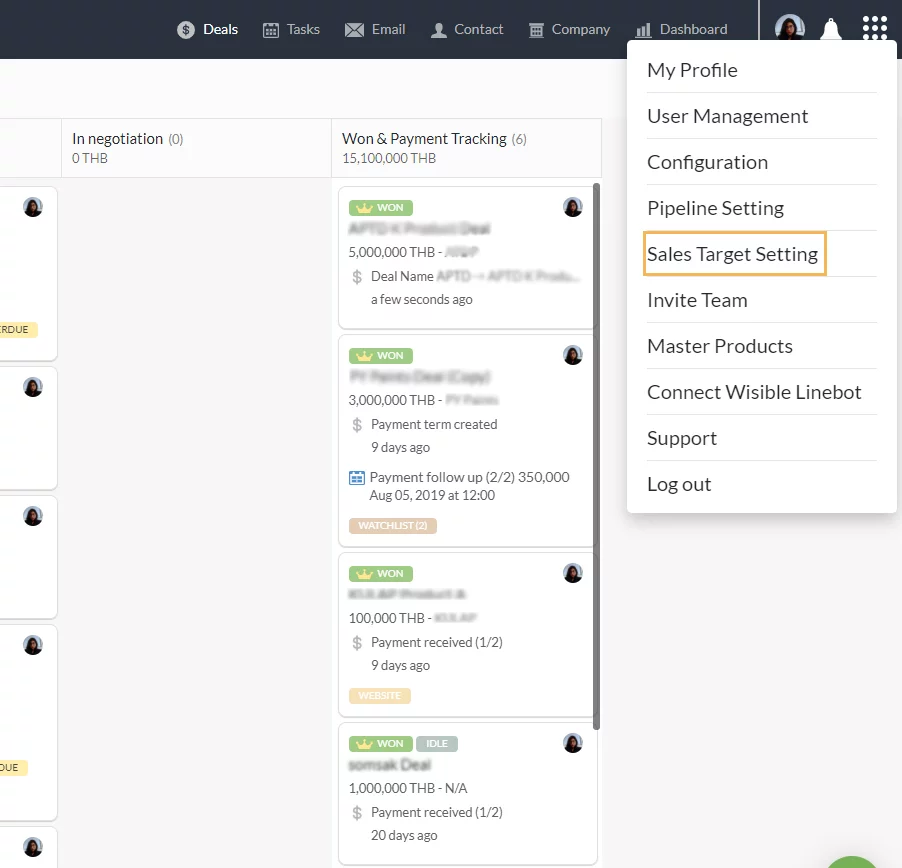
2. Enter to PIPELINE SETTING page

You will be entering to Pipeline Setting page which will put Sales Stages into the default sequence of the system.
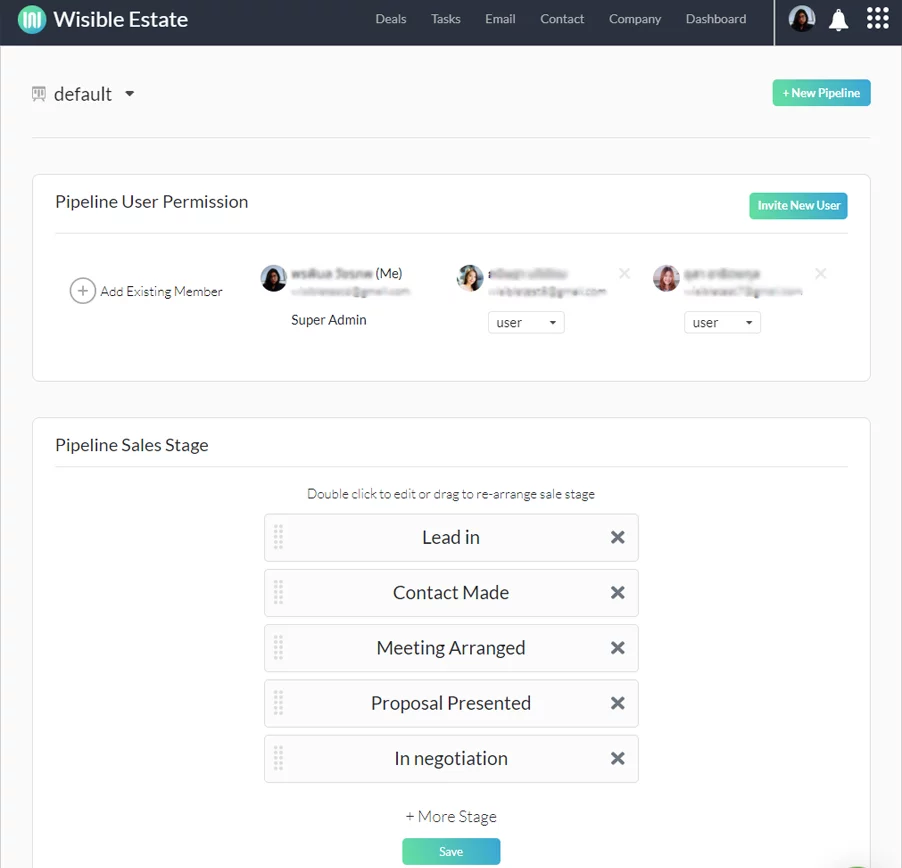
3. How to Edit SALES STAGE name

You can double click on the name of the Sales stage that you would like to edit and can edit in both Thai and English.
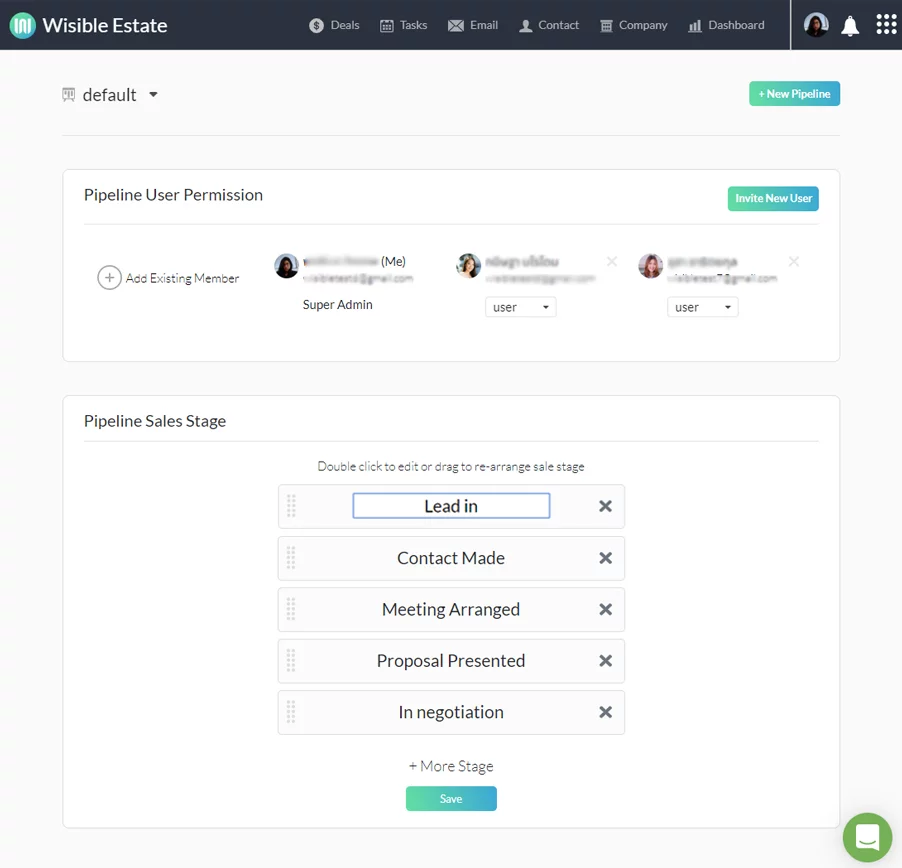
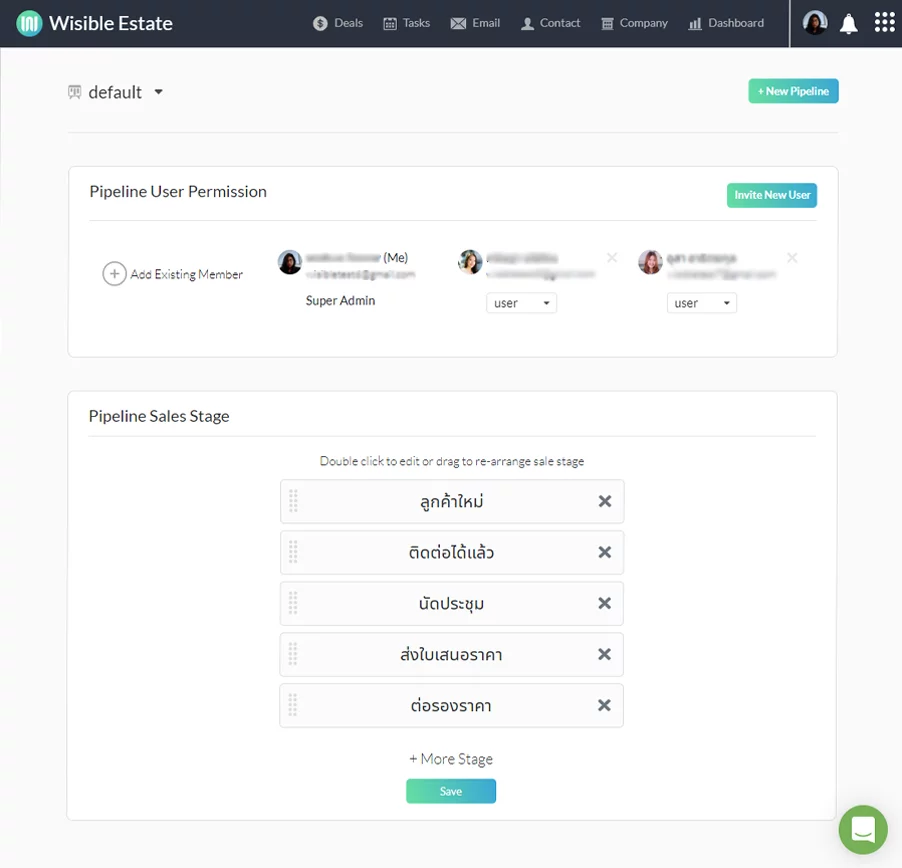
Once you have edited, click ‘Save Sale Pipeline’ button at the bottom of the page to confirm all the updates.
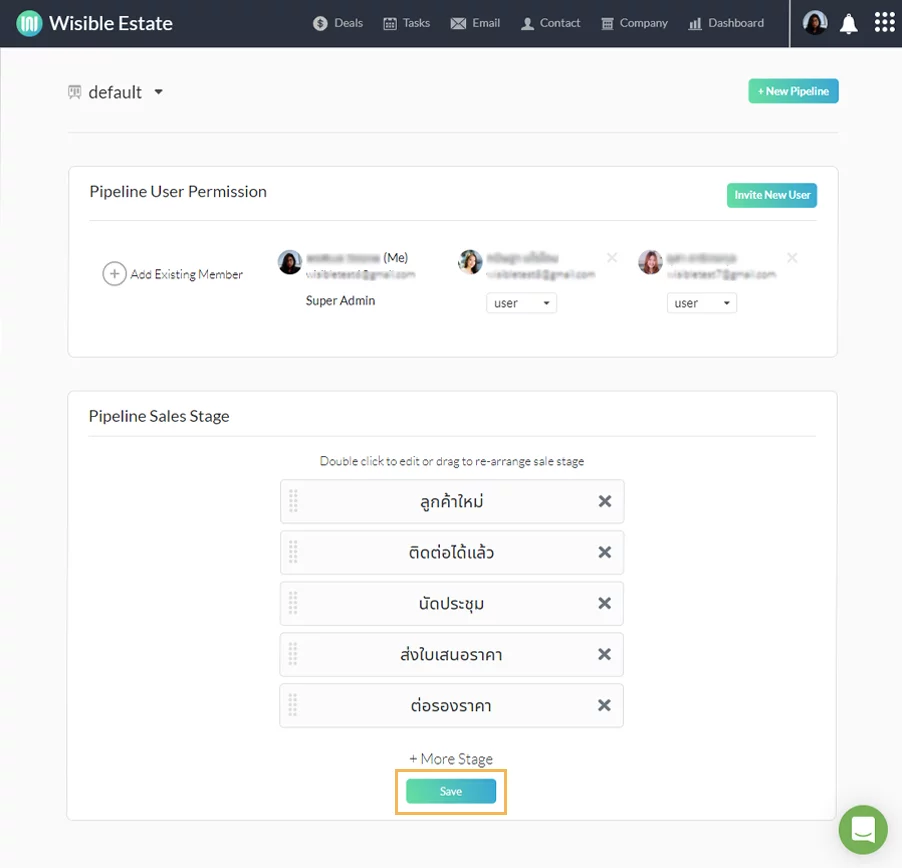
When you go back to the ‘Pipeline view’ page, you will see all the updates of your team pipeline as edited.

Similar Posts

  • Approve quotations anytime, anywhere with Wisible LINE Assistant.

    In the Sales procedure, sales quotation is another important step that needs fast action in order to close the deal and to create revenue for the company. Wisible LIne Assistant can assist the sales team to approve the quotation quickly and conveniently. When the quotation is made and the approval request has been sent to…

  • มอบหมายงาน เตือนความจำให้กับตัวคุณเองด้วย Wisible Line assistant

    นอกจากสร้างดีลใหม่ เพิ่มบันทึกย่อผ่าน Wisible Line assistant แล้ว คุณยังสามารถมอบหมายงานไว้เพื่อเตือนตัวคุณเองได้เช่นกัน เพียงกดที่ เมนู เพิ่มงานใหม่ (Add Task) ที่มุมซ้ายบรรทัดล่าง เลือกดีลที่คุณต้องการเพิ่มงานจากรายชื่อที่เราแสดงมาให้ และสามารถกด Show next deal เพื่อดูรายชื่อดีลเพิ่มเติมได้ จากนั้นใส่ชื่อของงานที่คุณต้องการจะให้เตือนความจำของคุณ เลือกวันเวลาที่คุณจะต้องทำงานนั้นให้สำเร็จ คำถามสุดท้ายจะปรากฏปุ่ม หากต้องใส่ note เพิ่มเติมให้พิมพ์ข้อความและกดส่งตอบกลับ หรือหากไม่ต้องการเพิ่ม note ให้กดที่ No เพื่อยืนยันการเพิ่ม task เมื่อเรียบร้อยแล้วคุณจะได้รับข้อความเเจ้งเตือนจากระบบว่าคุณได้สร้างงานเรียบร้อยแล้ว พร้อมกับข้อความรูปภาพที่คุณสามารถกดดูรายละเอียดของงานที่คุณสร้างไว้ผ่านปุ่ม View My Task ด้านล่าง ก่อนจะถึงวันเวลาที่กำหนดคุณจะได้รับข้อความแจ้งเตือนผ่าน Line อีกครั้ง เพื่อให้คุณไม่ลืมงานทั้งหมดที่ได้รับมอบหมาย ทั้งกรณีที่ทำผ่าน Wisible Line assistant และผ่าน Desktop อย่างแน่นอน