สร้างดีลใหม่อย่างรวดเร็วผ่าน Wisible assistant ใน Line

Patphimon W.

Business development of Wisible
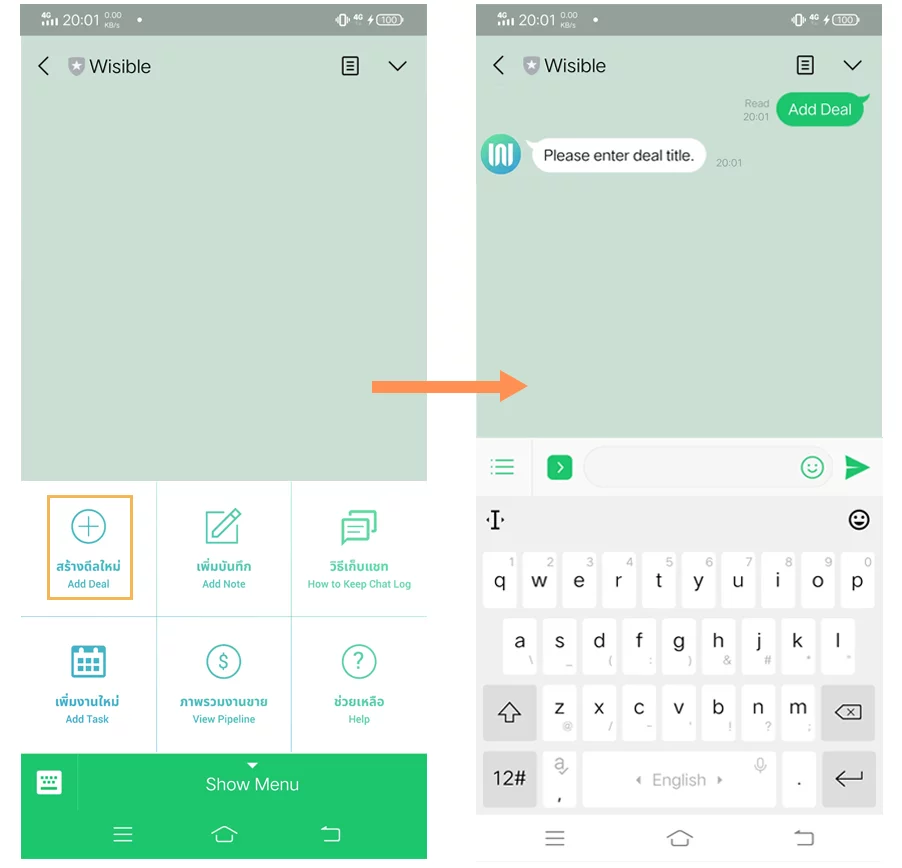
หลังจากที่คุณ Connect Wisible Linebot เรียบร้อย คุณจะพบกับเมนู 6 เมนู ที่สามารถทำงานผ่าน Wisible Line assistant ได้มาเริ่มที่ลำดับแรก เมนูซ้ายสุดแถวบน สร้างดีลใหม่ (Add Deal) คุณสามารถสร้างดีลแบบเร่งด่วนผ่านเมนูดังกล่าวได้เพียงเเค่ตอบคำถามต่อไปนี้ให้ครบ
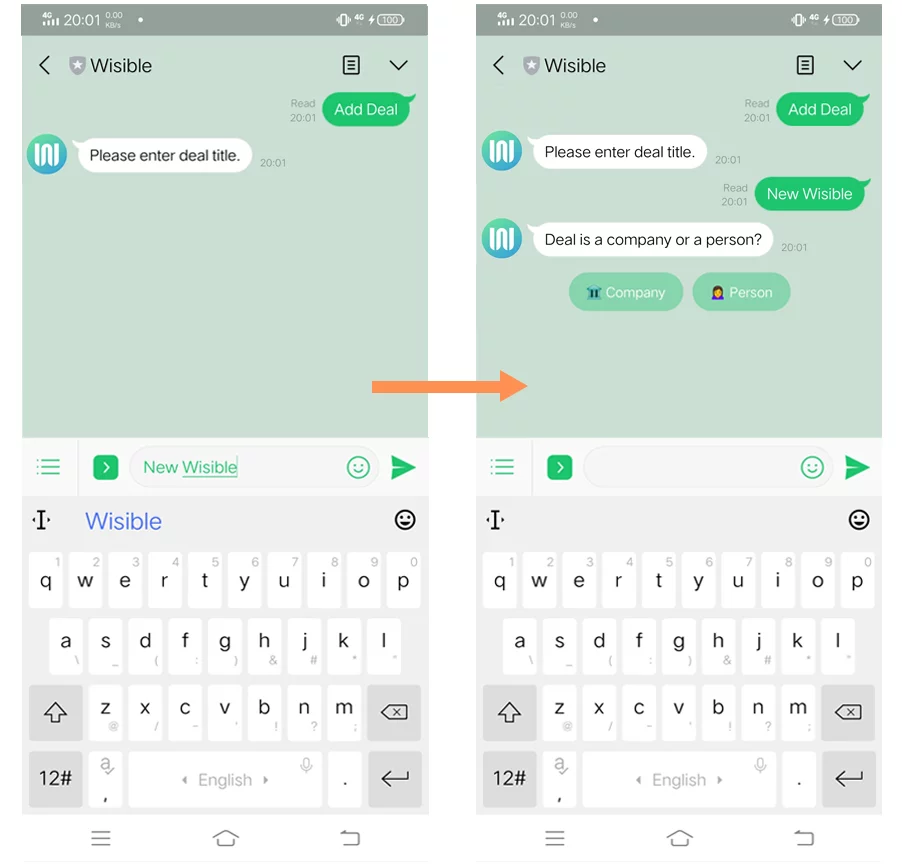
คำถามที่สอง Deal is a company or a person กดเลือกว่าลูกค้าของคุณในดีลนี้เป็น บริษัท หรือบุคคลธรรมดา
คำถามที่สาม Please enter the company name/ the person name พิมพ์ชื่อบริษัทหรือบุคคลที่เป็นลูกค้าในดีลนี้ของคุณ
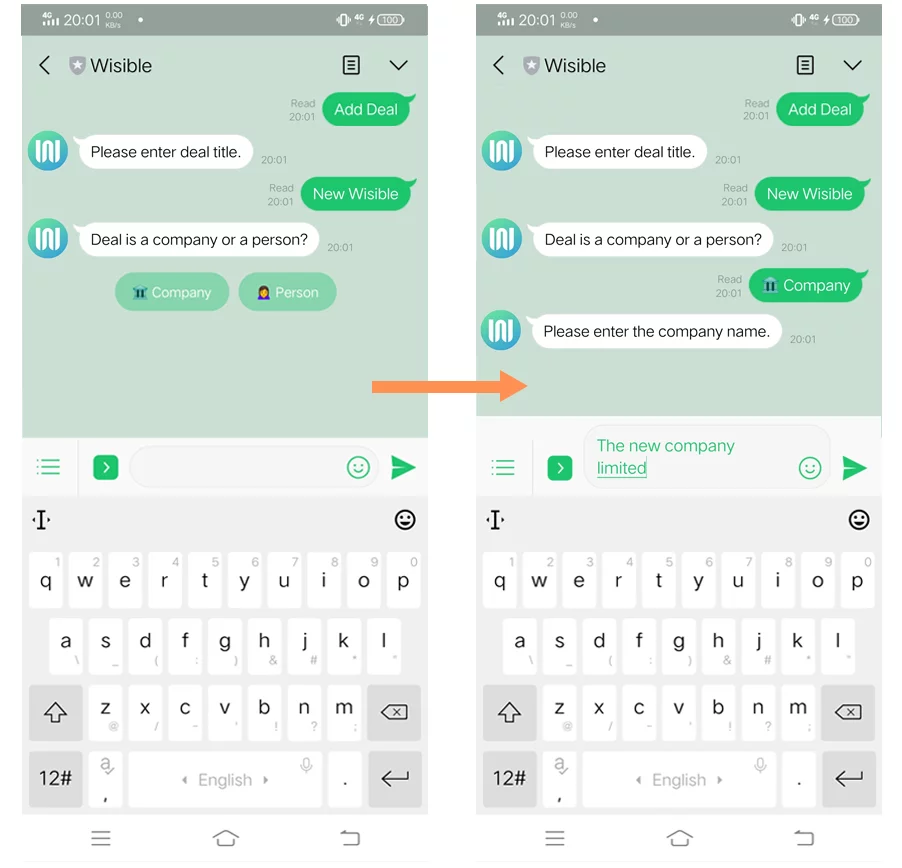
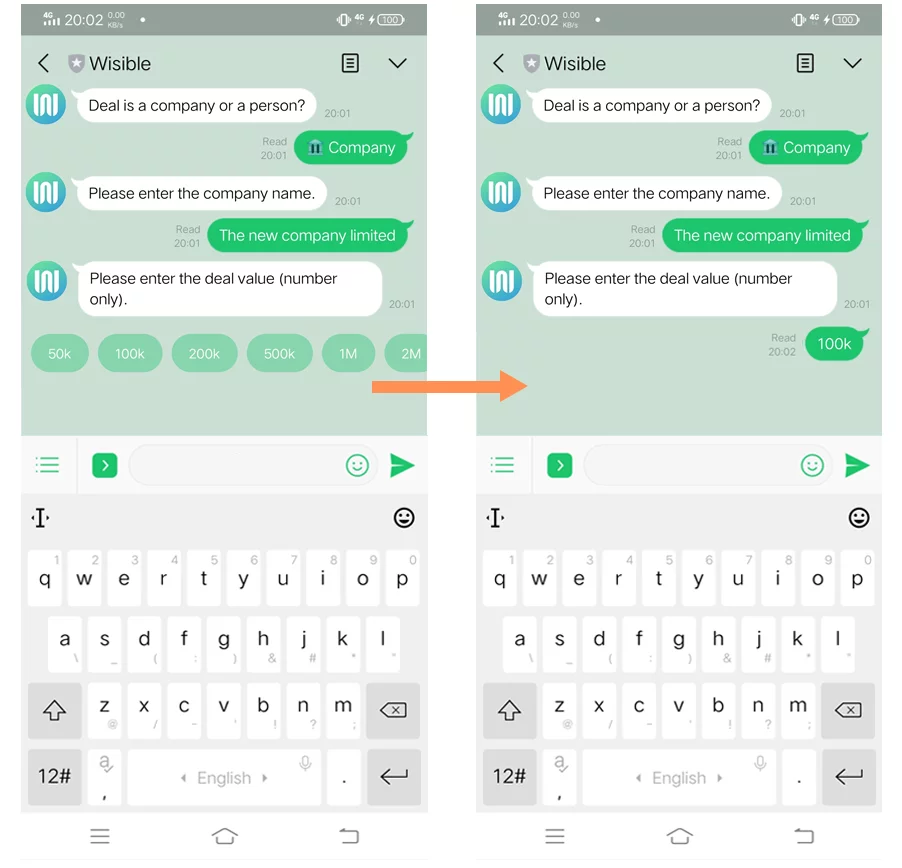
คำถามที่สี่ Please enter the deal value (number only) กรอกเฉพาะตัวเลขมูลค่าคาดคะเนของดีลนี้ลงไป หรือจะเลือกจากที่เราแนะนำก็ได้เช่นกัน
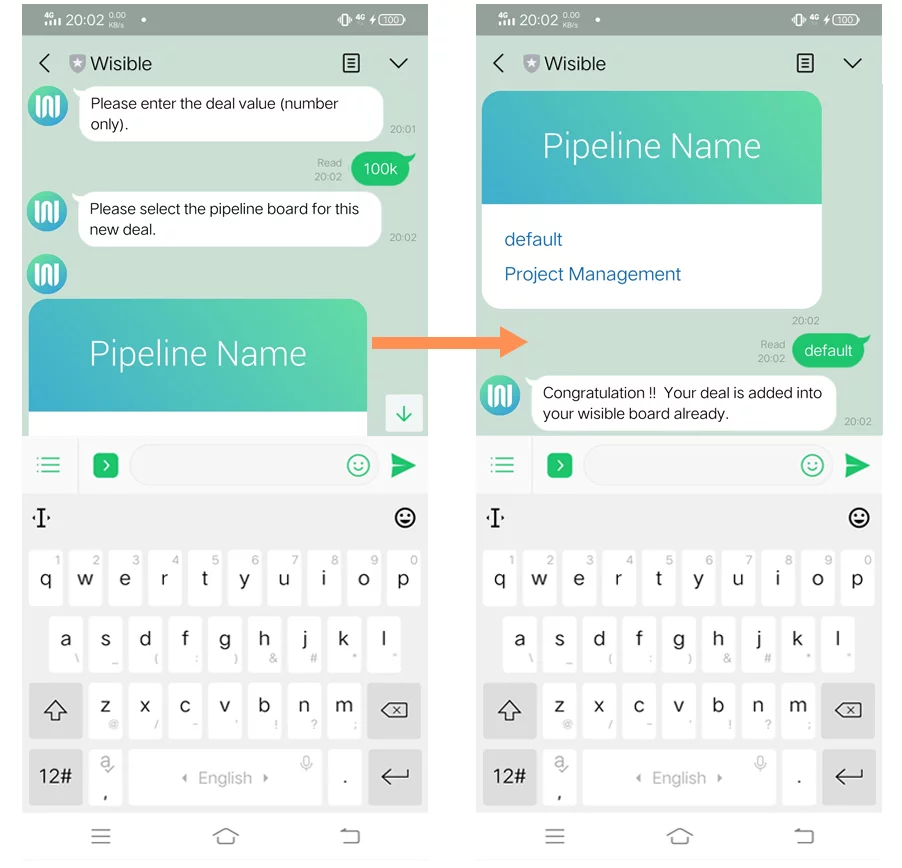
คำถามที่ห้าเฉพาะ user ที่มีสิทธิ์เข้าถึง Pipeline มากกว่า 1 Pipeline เราจะให้คุณเลือกว่าจะให้เพิ่มดีลนี้ไปที่ Pipeline ใด
เมื่อตอบครบทุกคำถามเเล้ว คุณจะได้รับข้อความแจ้งเตือนจากระบบ  พร้อมกับข้อความรูปภาพที่คุณสามารถกดดูรายละเอียดของดีลที่คุณสร้างไว้ผ่านปุ่ม View Deal detail ด้านล่าง
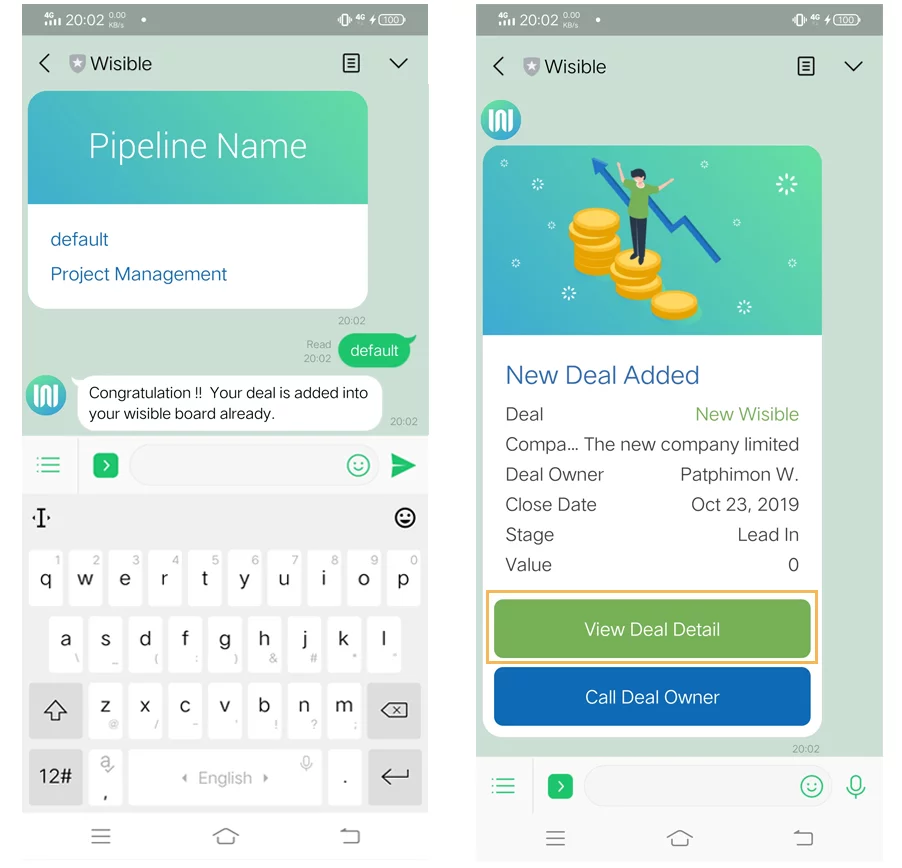
คุณสามารถเข้าไปเพิ่มเติมข้อมูลอื่นได้จากหน้าดังกล่าว หรือจะไปเปิด desktop ของคุณเพื่อเพิ่มรายละเอียดอื่นๆ ในภายหลังได้เช่นกันค่ะ

Similar Posts

Quickly create new deals through the Wisible assistant in LINE

Share important files in each deal for more convenient collaboration
Quickly create new deals through the Wisible assistant in Line

After you have already connected to Wisible LInebot, you will be able to see 6 menus that you can use via Wisible Line Assistant. Let’s start with the first one, the left item on the first row; Creating New Deal (Add Deal). You can create new deals urgently through this menu by answering all the following questions.

The second question ‘Deal is a company or a person?’, choose by clicking whether your dealing customer is the company customer or individual customer.

The third question is ‘Please enter the company name/ the person name’, type the name of the company or individual client in this deal.

The fourth question, ‘Please enter the deal value (number only)’, filling in only the estimated value of the deal or you can choose from the amount displayed by the system.

The fifth question, only user that is allow to access to more than 1 Pipeline, we will let you choose which pipeline will this deal be added to.

Once you have answered all the questions, you will receive a message notification from the system with the infographic that you can access to see further details that you have created on the ‘View Deal Detail’ button below.

You can access to add any other details from this page or from your desktop, if you would like to add any details later.

Similar Posts

  • Setting Up for Quotation Usage

    To set up for Quotation Management Feature which is a special extra extension for working together with Master Product Feature so that your team can create a simple quotation by themselves by following these steps (For those who are using with Admin and Super Admin level only that will be allowed to set up this…

  • มอบหมายงาน เตือนความจำให้กับตัวคุณเองด้วย Wisible Line assistant

    นอกจากสร้างดีลใหม่ เพิ่มบันทึกย่อผ่าน Wisible Line assistant แล้ว คุณยังสามารถมอบหมายงานไว้เพื่อเตือนตัวคุณเองได้เช่นกัน เพียงกดที่ เมนู เพิ่มงานใหม่ (Add Task) ที่มุมซ้ายบรรทัดล่าง เลือกดีลที่คุณต้องการเพิ่มงานจากรายชื่อที่เราแสดงมาให้ และสามารถกด Show next deal เพื่อดูรายชื่อดีลเพิ่มเติมได้ จากนั้นใส่ชื่อของงานที่คุณต้องการจะให้เตือนความจำของคุณ เลือกวันเวลาที่คุณจะต้องทำงานนั้นให้สำเร็จ คำถามสุดท้ายจะปรากฏปุ่ม หากต้องใส่ note เพิ่มเติมให้พิมพ์ข้อความและกดส่งตอบกลับ หรือหากไม่ต้องการเพิ่ม note ให้กดที่ No เพื่อยืนยันการเพิ่ม task เมื่อเรียบร้อยแล้วคุณจะได้รับข้อความเเจ้งเตือนจากระบบว่าคุณได้สร้างงานเรียบร้อยแล้ว พร้อมกับข้อความรูปภาพที่คุณสามารถกดดูรายละเอียดของงานที่คุณสร้างไว้ผ่านปุ่ม View My Task ด้านล่าง ก่อนจะถึงวันเวลาที่กำหนดคุณจะได้รับข้อความแจ้งเตือนผ่าน Line อีกครั้ง เพื่อให้คุณไม่ลืมงานทั้งหมดที่ได้รับมอบหมาย ทั้งกรณีที่ทำผ่าน Wisible Line assistant และผ่าน Desktop อย่างแน่นอน