Connect with Wisible LINE Bot to use Smart Assistant

Share important files in each deal for more convenient collaboration
Connect with Wisible Line Bot to use Smart Assistant

Connecting your Wisible account to Wisible Line Bot for more convenience, even if you have only a mobile phone at the moment, you will still be able to use Wisible smoothly. 

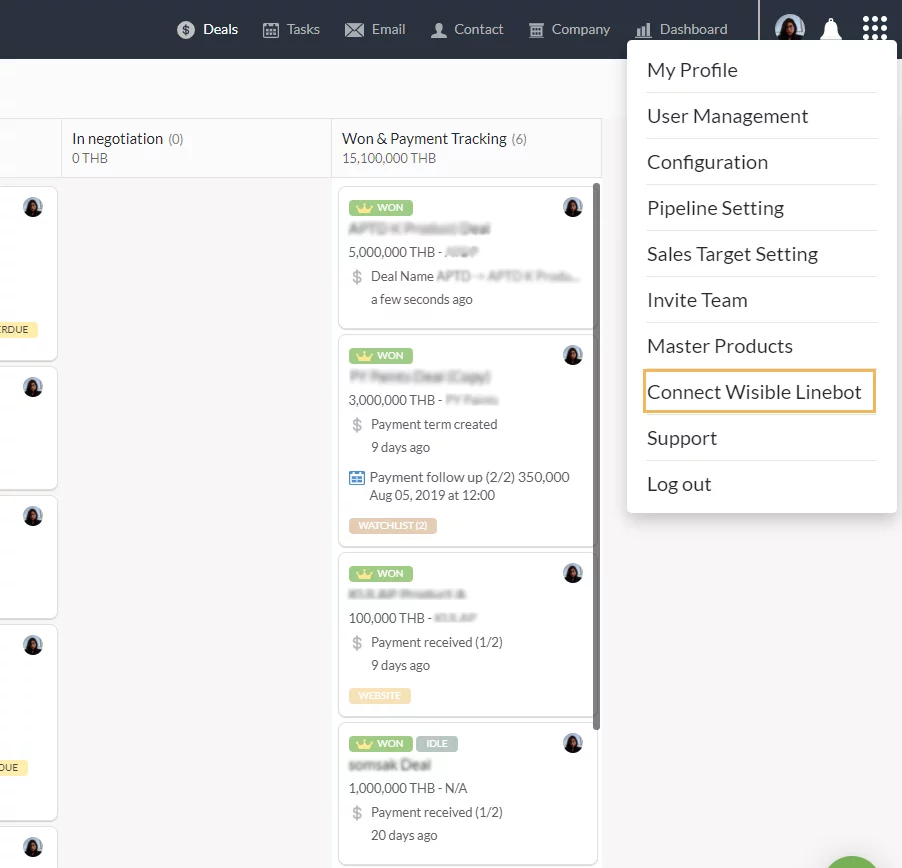
1. Entering sub-menu ‘Connect Wisible Linebot’

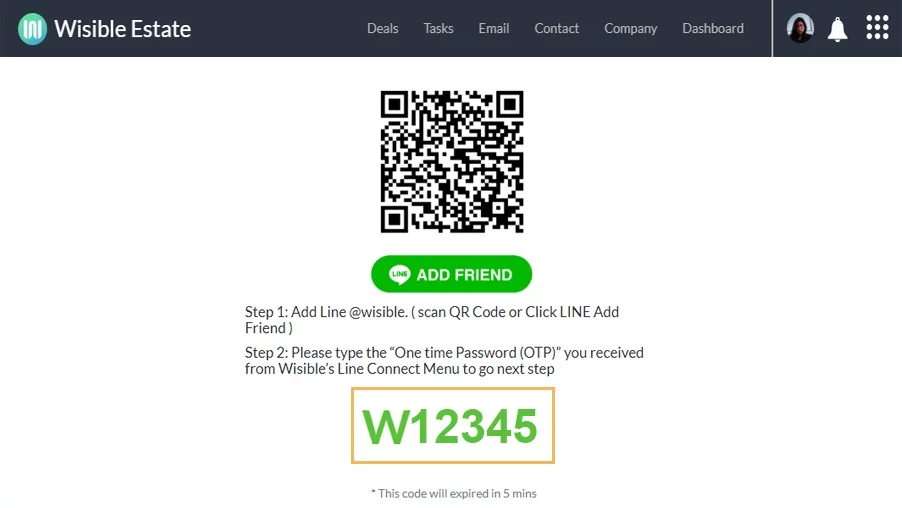
Go to 9 dots menu on the top right corner on Wisible page, then choose ‘Connect Wisible Linebot’
2. Entering to ‘Connect Wisible Linebot’ Page

You will enter to the page displaying the details, Scan the QR code or click ‘Add Friend’ button to become friend with Wisible
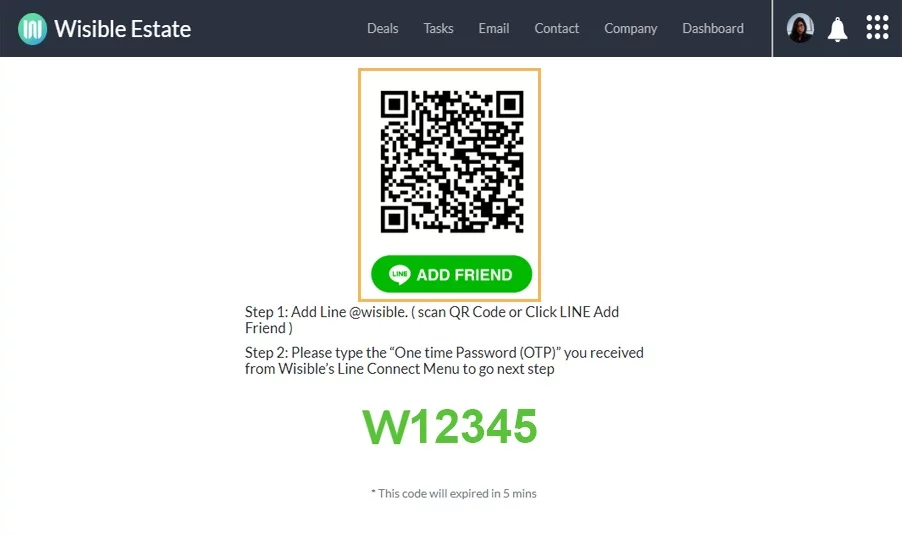
3. Fill in the one-time password for verification

After adding friend, find the 6 digits one-time password and fill the password in the Wisible Linebot chat room where you just recently added.
Once you have filled in the password, click send like you have a normal chat, then, there will be a message informed that you have already connected your Wisible Account with LIne Account.
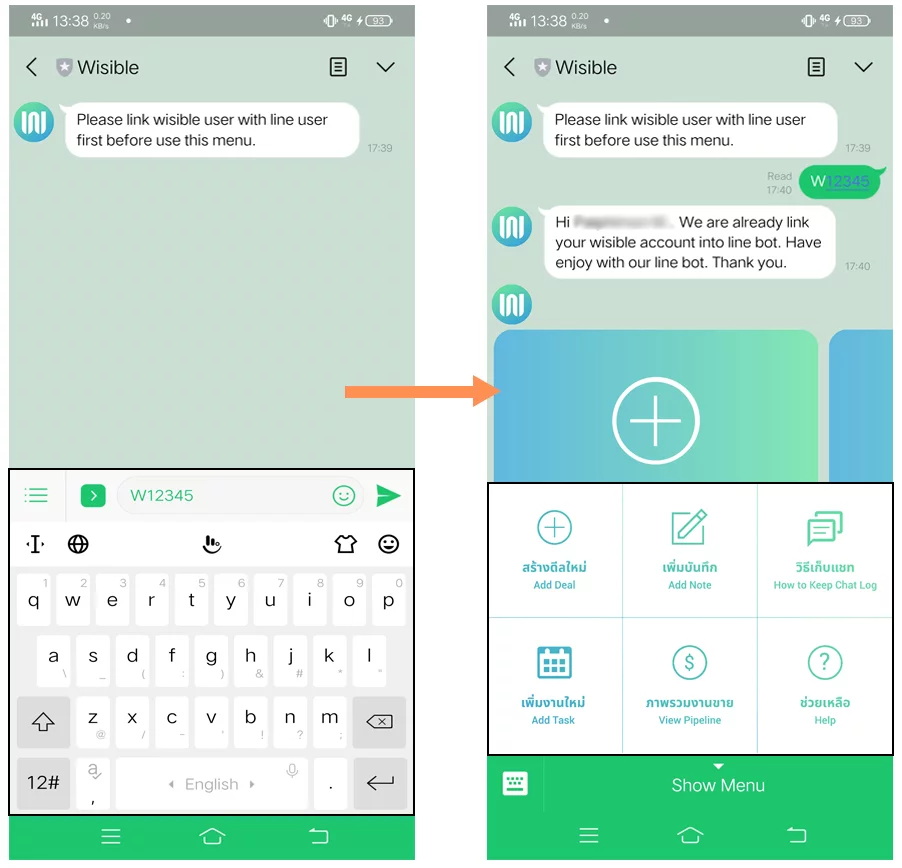
After connecting, at the ‘Show Menu’, you will be noticed that you can work through Line application with these following lists:

  • Creating new deal (Add Deal)
  • Adding Notes (Add Note)
  • Keeping the Chat (Keep Chat Log)
  • Adding new tasks (Add Task)
  • View overall sales pipeline (View Pipeline)

Through interaction as if you are talking to your talented assistant who will collect your answered details to proceed further on behalf of you, as if you are working through a normal PC. Furthermore, it comes with notification alerts on essential events related to deals that you are responsible on so that you will be able to notice all the movement in Real Time.
Similar Posts

  • มอบหมายงาน เตือนความจำให้กับตัวคุณเองด้วย Wisible Line assistant

    นอกจากสร้างดีลใหม่ เพิ่มบันทึกย่อผ่าน Wisible Line assistant แล้ว คุณยังสามารถมอบหมายงานไว้เพื่อเตือนตัวคุณเองได้เช่นกัน เพียงกดที่ เมนู เพิ่มงานใหม่ (Add Task) ที่มุมซ้ายบรรทัดล่าง เลือกดีลที่คุณต้องการเพิ่มงานจากรายชื่อที่เราแสดงมาให้ และสามารถกด Show next deal เพื่อดูรายชื่อดีลเพิ่มเติมได้ จากนั้นใส่ชื่อของงานที่คุณต้องการจะให้เตือนความจำของคุณ เลือกวันเวลาที่คุณจะต้องทำงานนั้นให้สำเร็จ คำถามสุดท้ายจะปรากฏปุ่ม หากต้องใส่ note เพิ่มเติมให้พิมพ์ข้อความและกดส่งตอบกลับ หรือหากไม่ต้องการเพิ่ม note ให้กดที่ No เพื่อยืนยันการเพิ่ม task เมื่อเรียบร้อยแล้วคุณจะได้รับข้อความเเจ้งเตือนจากระบบว่าคุณได้สร้างงานเรียบร้อยแล้ว พร้อมกับข้อความรูปภาพที่คุณสามารถกดดูรายละเอียดของงานที่คุณสร้างไว้ผ่านปุ่ม View My Task ด้านล่าง ก่อนจะถึงวันเวลาที่กำหนดคุณจะได้รับข้อความแจ้งเตือนผ่าน Line อีกครั้ง เพื่อให้คุณไม่ลืมงานทั้งหมดที่ได้รับมอบหมาย ทั้งกรณีที่ทำผ่าน Wisible Line assistant และผ่าน Desktop อย่างแน่นอน

  • สร้างดีลใหม่อย่างรวดเร็วผ่าน Wisible assistant ใน Line

    หลังจากที่คุณ Connect Wisible Linebot เรียบร้อย คุณจะพบกับเมนู 6 เมนู ที่สามารถทำงานผ่าน Wisible Line assistant ได้มาเริ่มที่ลำดับแรก เมนูซ้ายสุดแถวบน สร้างดีลใหม่ (Add Deal) คุณสามารถสร้างดีลแบบเร่งด่วนผ่านเมนูดังกล่าวได้เพียงเเค่ตอบคำถามต่อไปนี้ให้ครบ คำถามที่สอง Deal is a company or a person กดเลือกว่าลูกค้าของคุณในดีลนี้เป็น บริษัท หรือบุคคลธรรมดา คำถามที่สาม Please enter the company name/ the person name พิมพ์ชื่อบริษัทหรือบุคคลที่เป็นลูกค้าในดีลนี้ของคุณ คำถามที่สี่ Please enter the deal value (number only) กรอกเฉพาะตัวเลขมูลค่าคาดคะเนของดีลนี้ลงไป หรือจะเลือกจากที่เราแนะนำก็ได้เช่นกัน คำถามที่ห้าเฉพาะ user ที่มีสิทธิ์เข้าถึง Pipeline มากกว่า 1…