How can the data you export from Wisible be displayed in Thai?

Share important files in each deal for more convenient collaboration
How can the data you export from Wisible be displayed in Thai?

Exporting Data

In the case that you would like to export data from the system, it can easily be done by following these steps:

  1. Sign In to Wisible with Super Admin Account
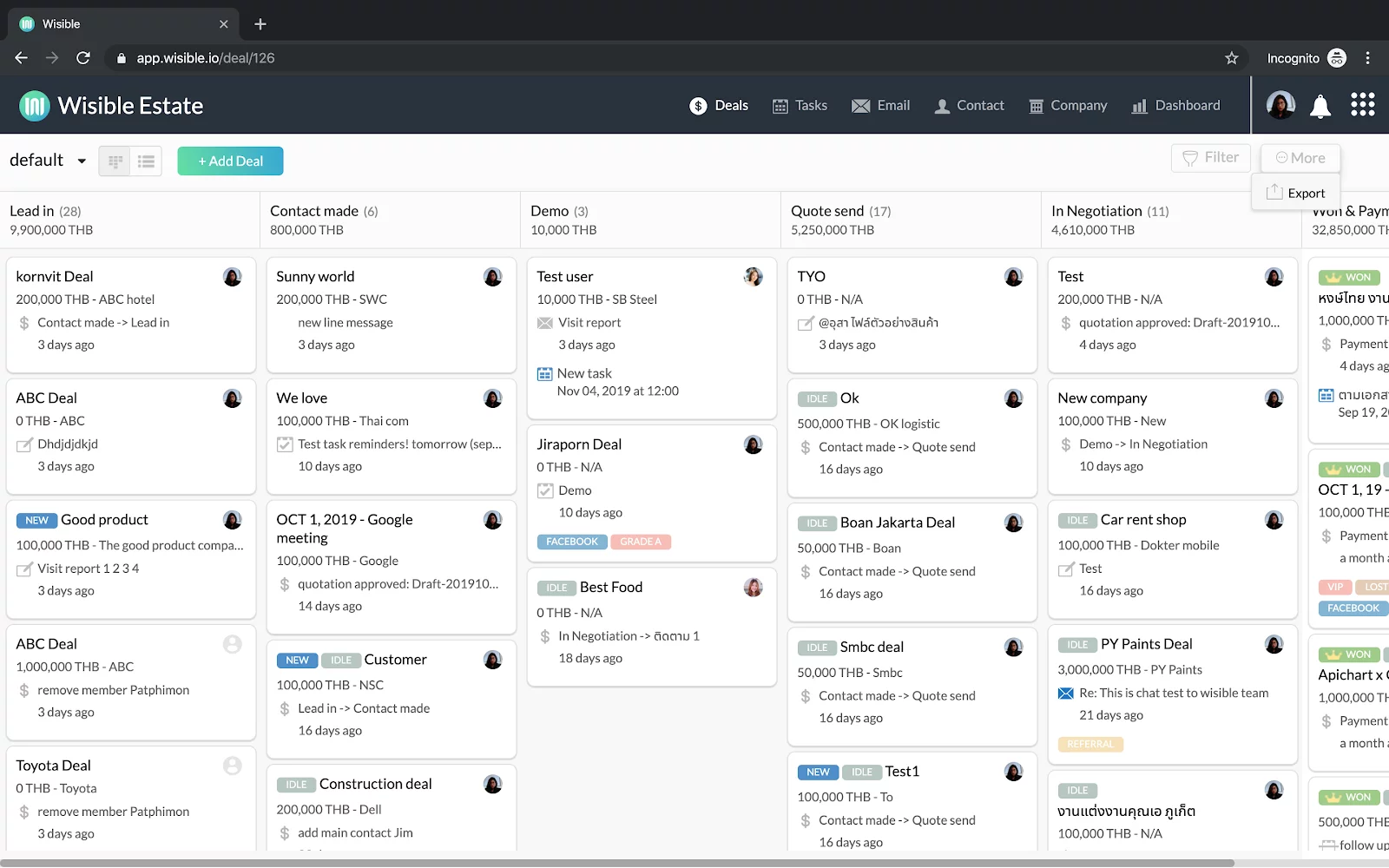
  2. At the pipeline page, click on ‘More’ buttom on the top right corner and click on the ‘Export’ button
Source: source: https://www.slideteam.net/estimating-cost-duration-and-other-required-values-at-different-sales-funnel-stages.html

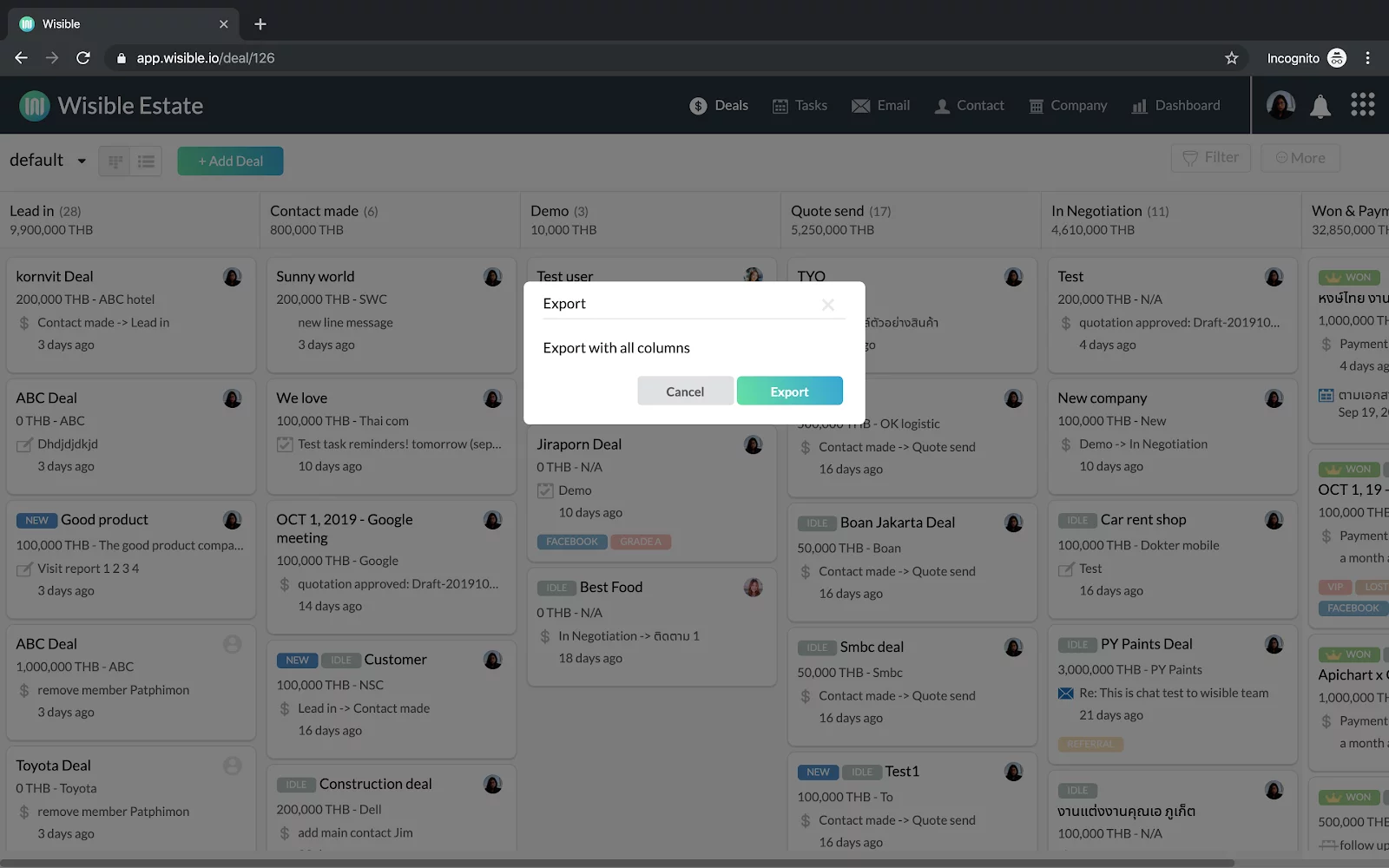
3. The dialog will pop-up, click ‘Export’. You will receive the file as ‘deal.csv’ which are the entire data on the pipeline page. If there are many pipelines, you have to separately download in each pipeline.

Source: source: https://www.slideteam.net/estimating-cost-duration-and-other-required-values-at-different-sales-funnel-stages.html

Exporting Data

Normally, for excel format, if it is a CSV file. The UTF-8 will not be set us, therefore, Thai version will not be able to read by the format (This example is MS Excel Version 16.x 2019 which some version might be some differences in menu positions)

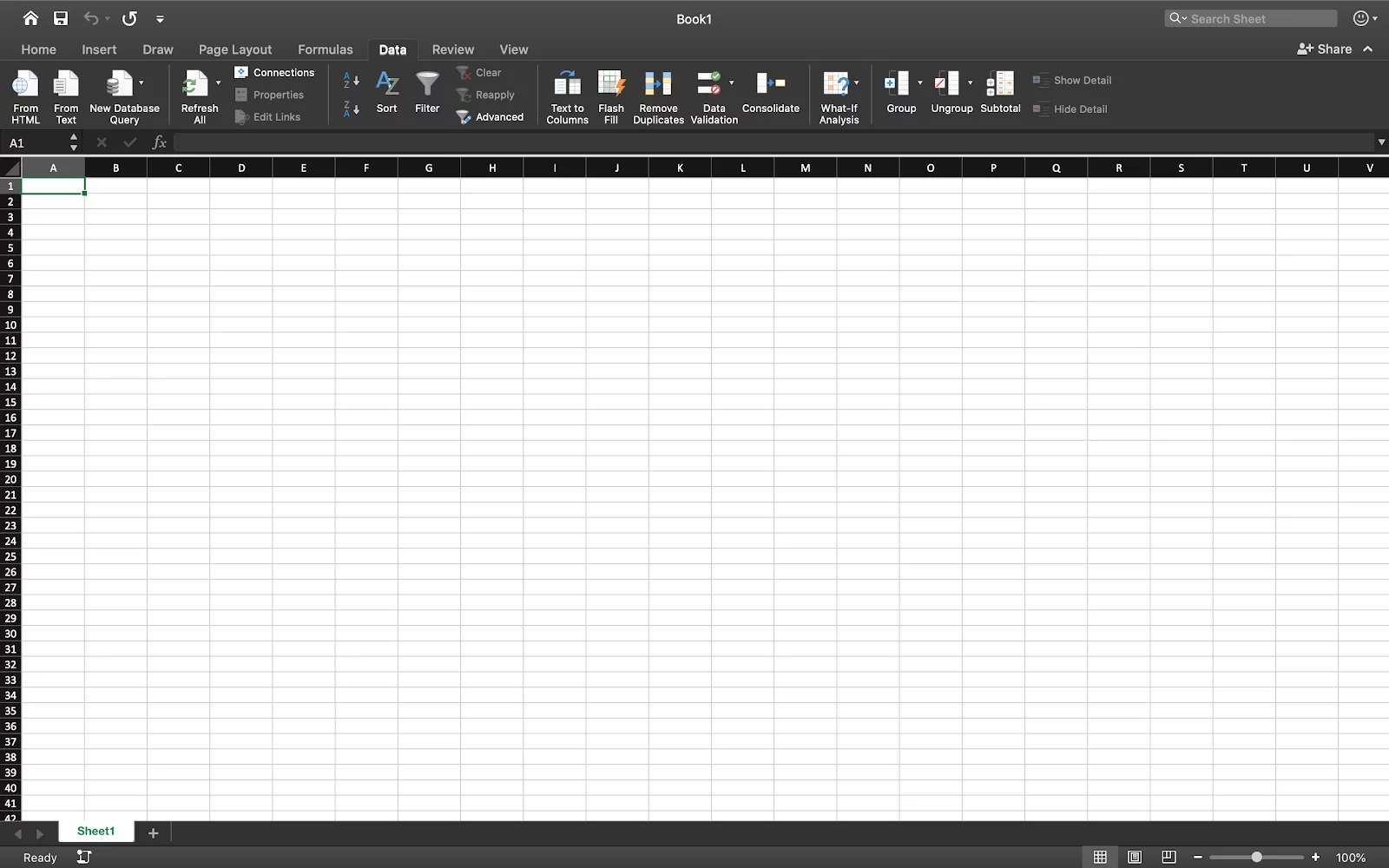
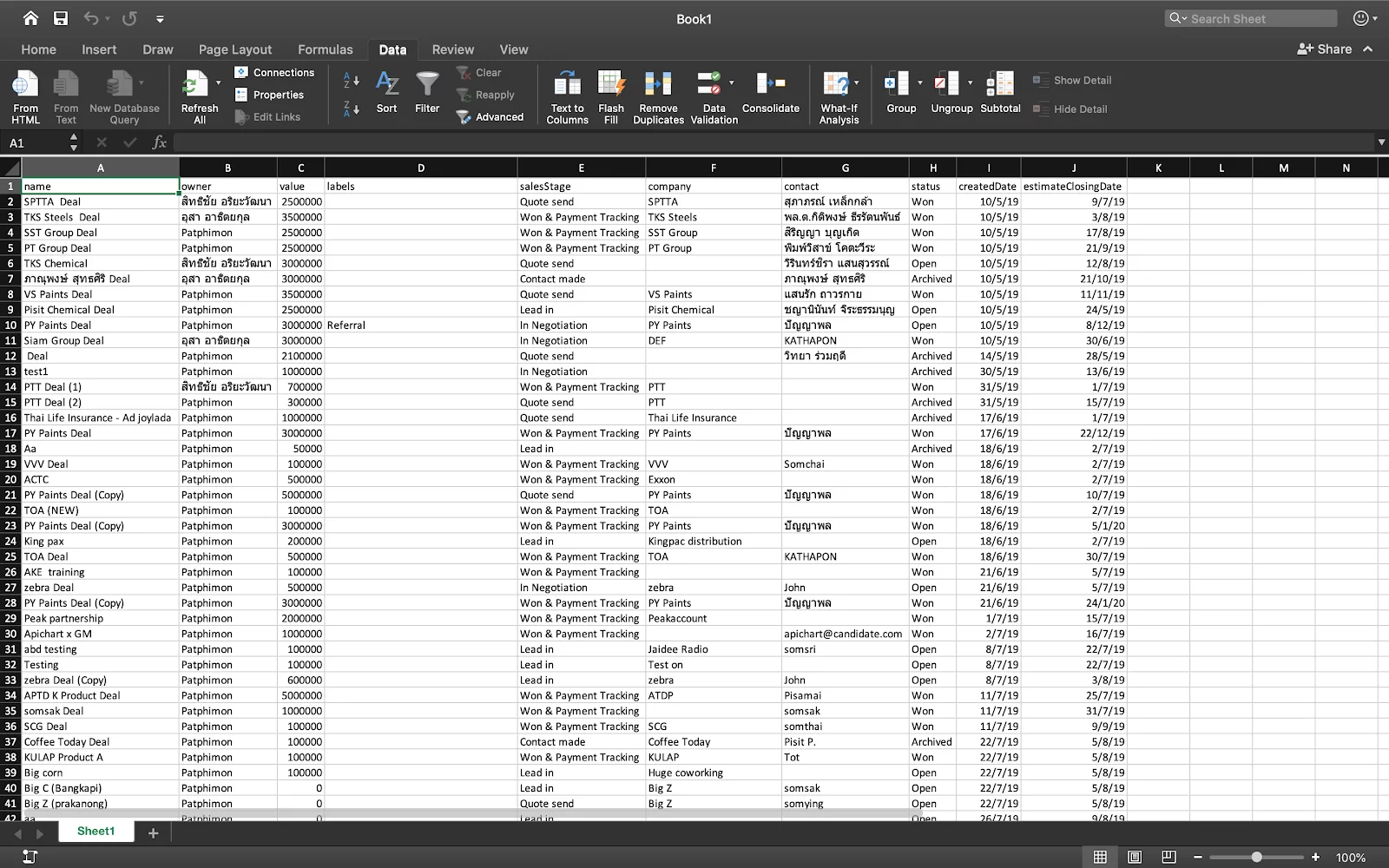
  1. Open ‘New Workbook’ on Excel
  2. Go to Menu > Data > From Text
Source: source: https://www.slideteam.net/estimating-cost-duration-and-other-required-values-at-different-sales-funnel-stages.html

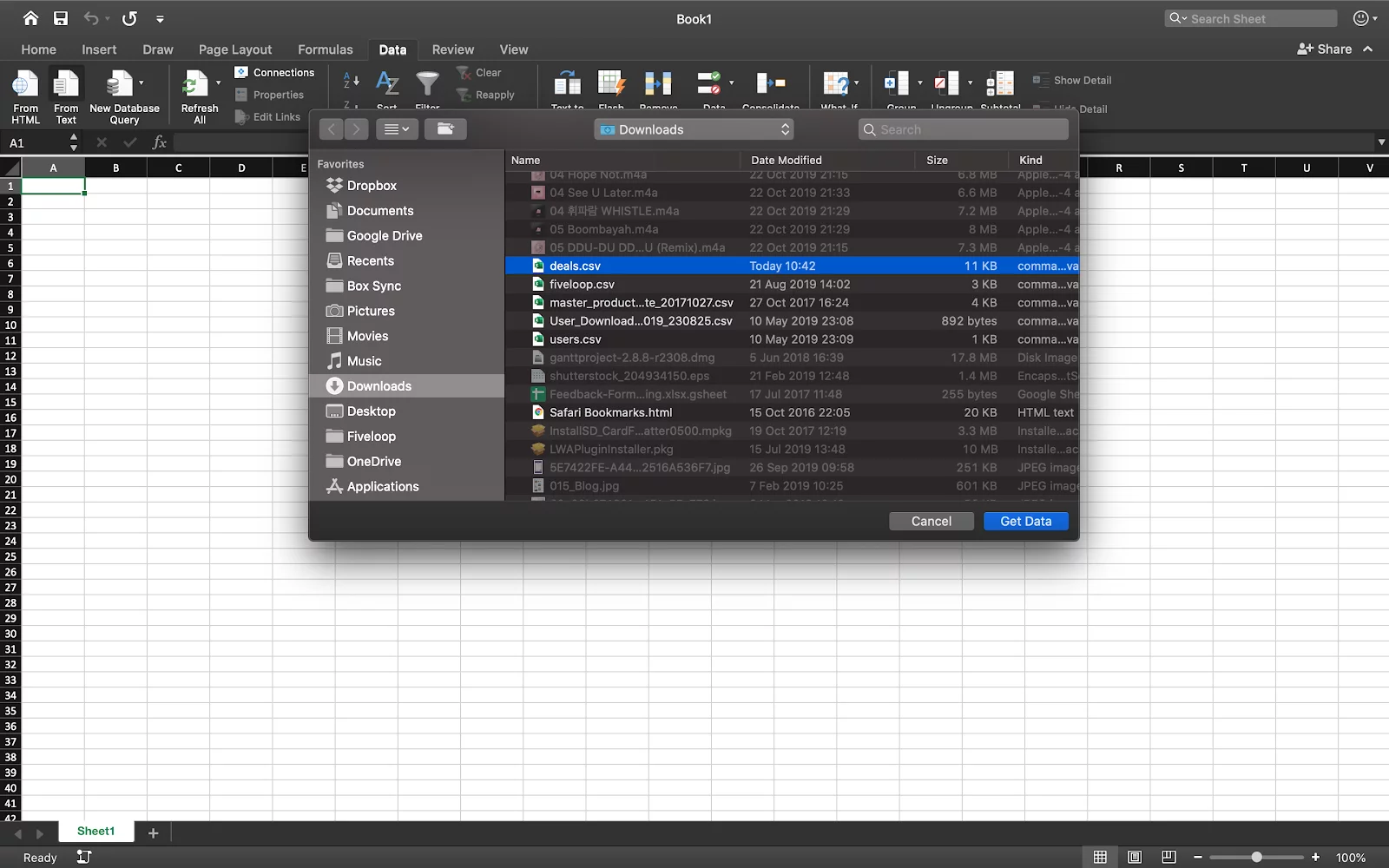
3. Then, choose the file ‘deal.csv’ and click ‘Get Data’ button.

Source: source: https://www.slideteam.net/estimating-cost-duration-and-other-required-values-at-different-sales-funnel-stages.html

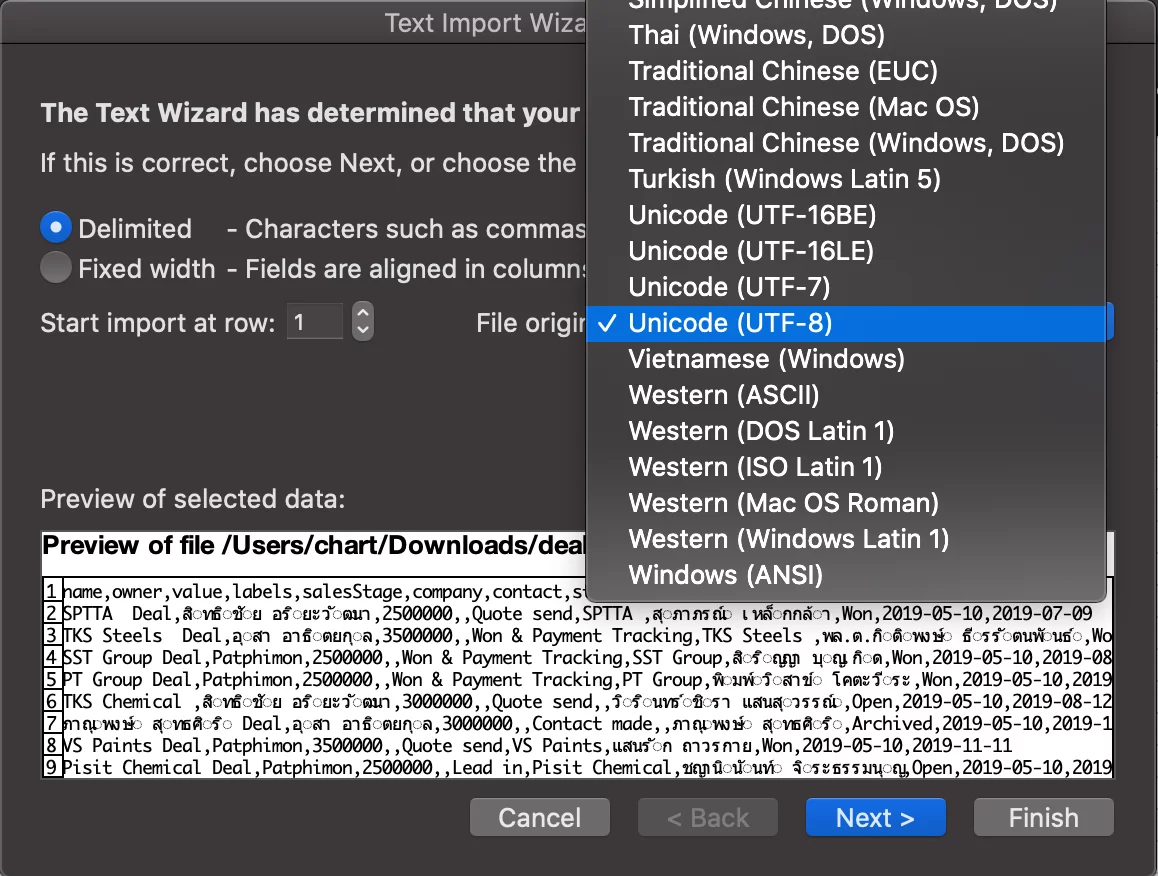
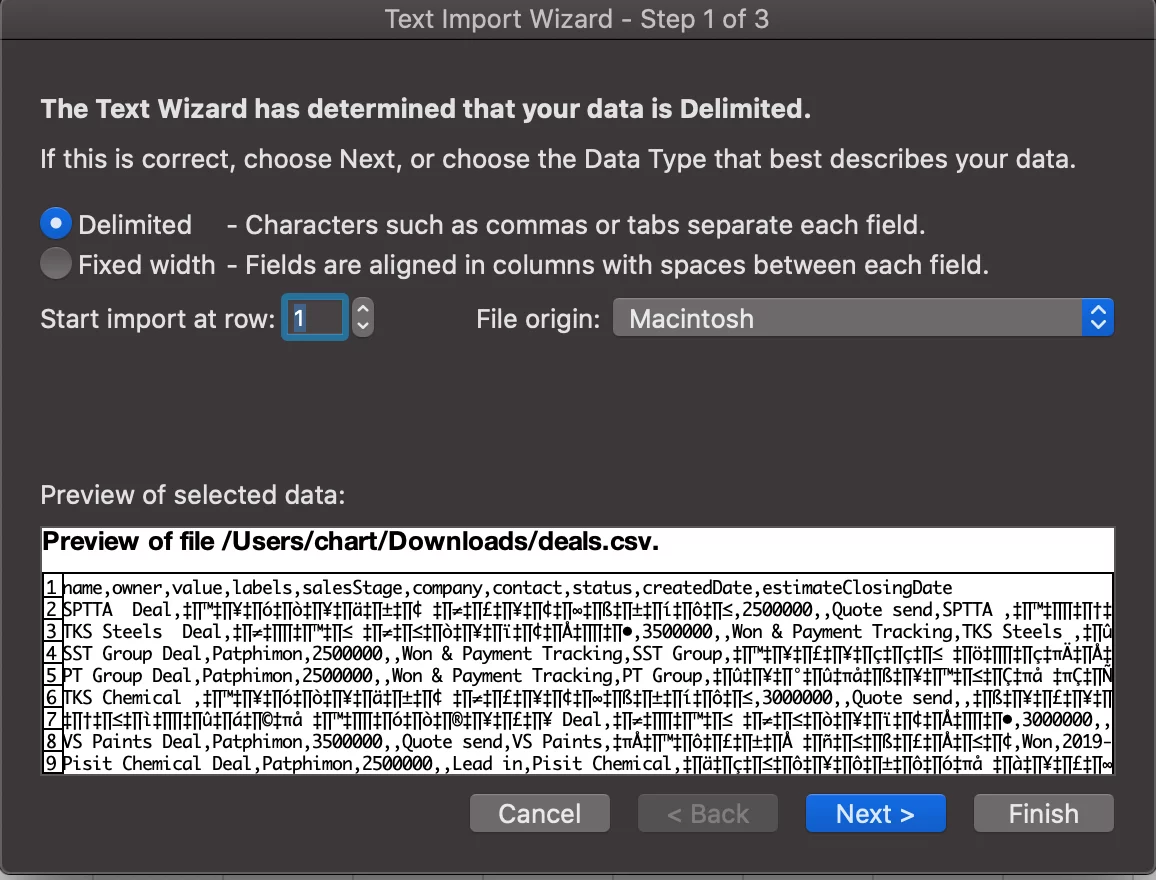
4. Excel will open Dialog “Text Import Wizard – Step 1 of 3”
Source: source: https://www.slideteam.net/estimating-cost-duration-and-other-required-values-at-different-sales-funnel-stages.html

5. At File origin: choose Unicode (UTF-8) and click ‘Next’

Source: source: https://www.slideteam.net/estimating-cost-duration-and-other-required-values-at-different-sales-funnel-stages.html

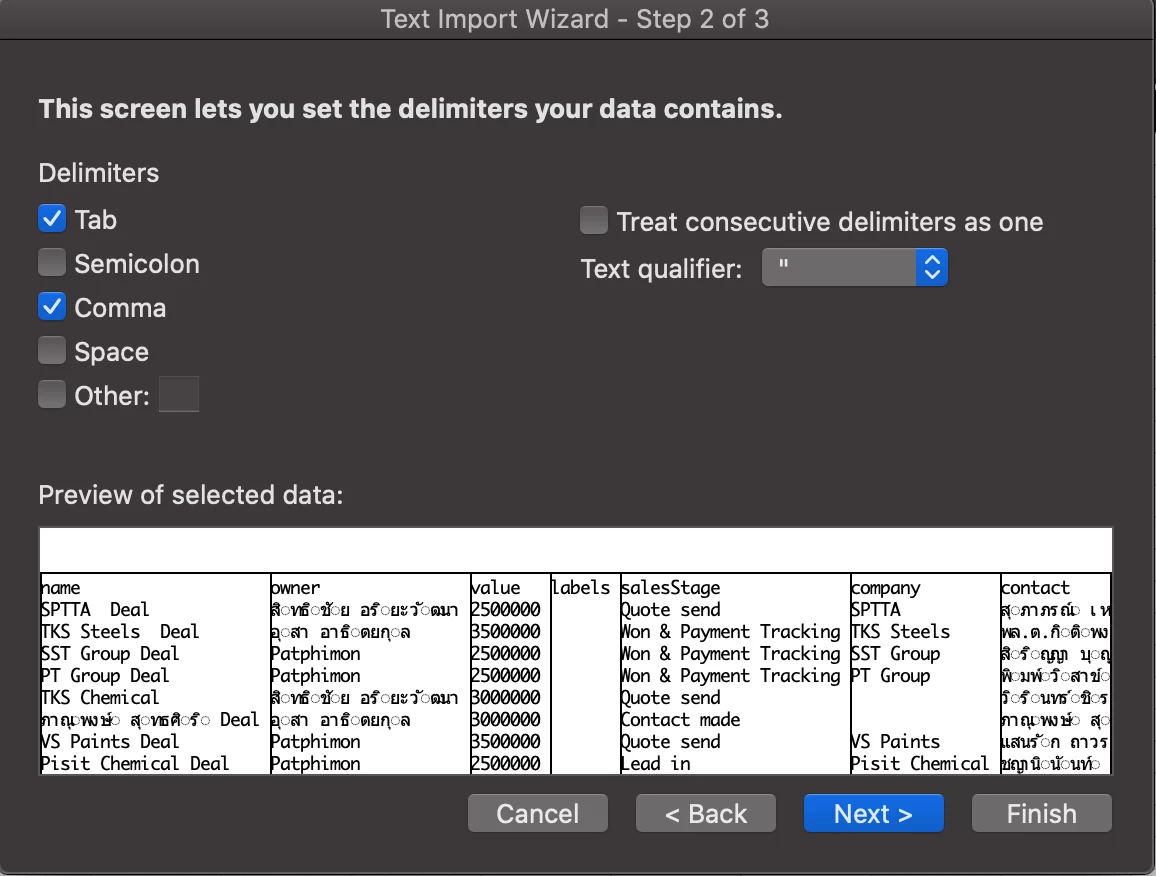
6. then, Delimiters, check the Tab and Comma and then click ‘Next’

Source: source: https://www.slideteam.net/estimating-cost-duration-and-other-required-values-at-different-sales-funnel-stages.html

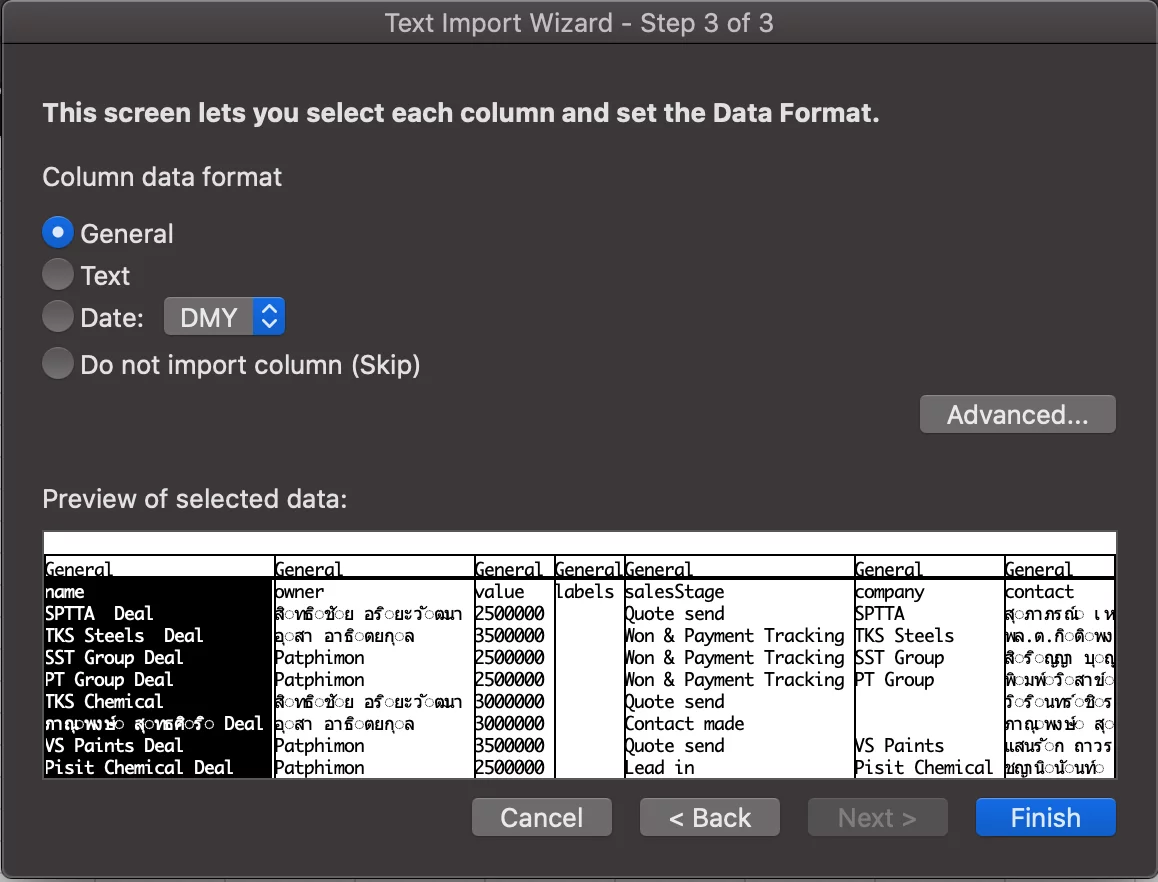
7. On the last page, click ‘Finish’

Source: source: https://www.slideteam.net/estimating-cost-duration-and-other-required-values-at-different-sales-funnel-stages.html

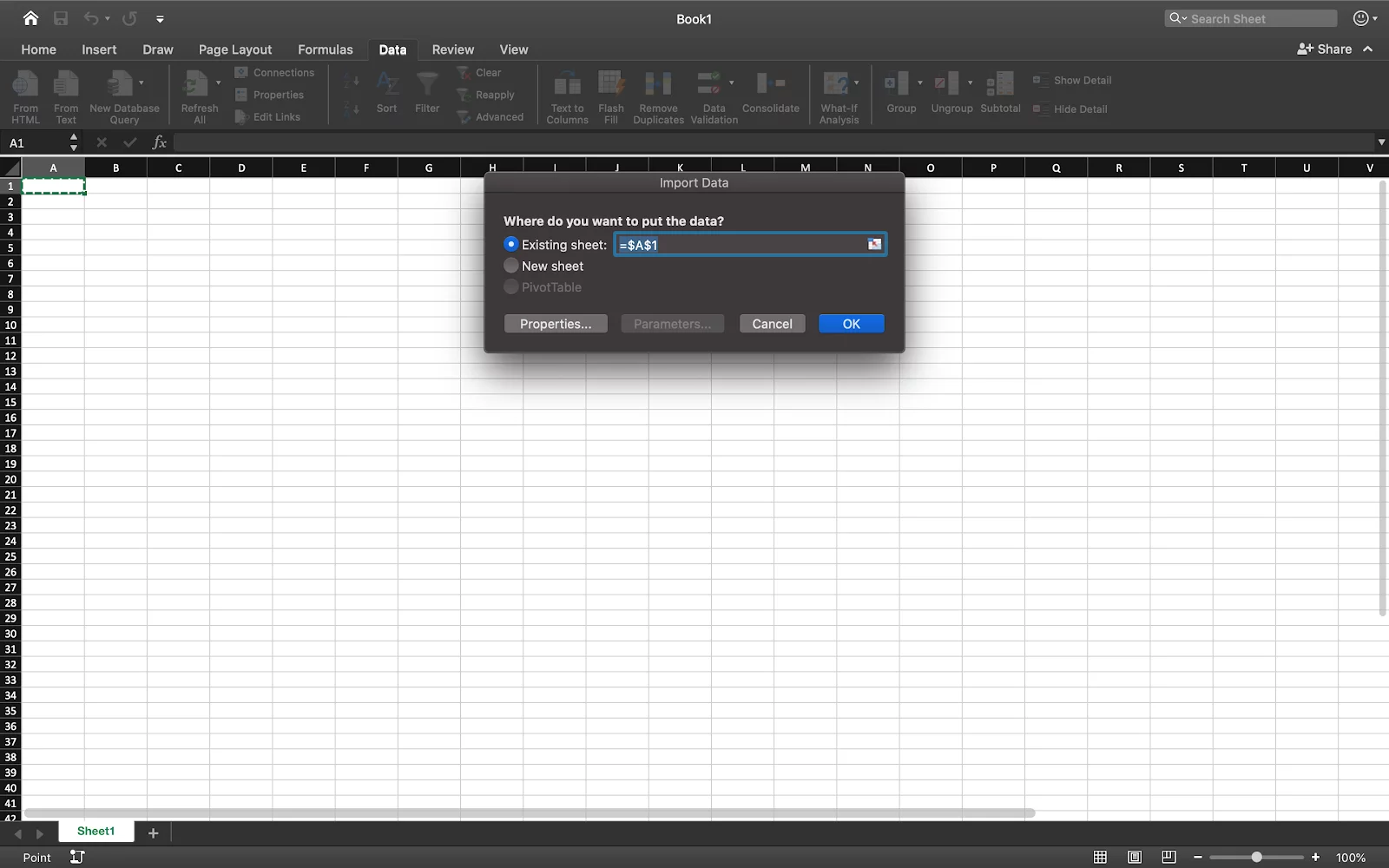
8. Finally, click ‘OK’, with this, you will be able to read the Thai data. You can now click ‘Save file’.

Source: source: https://www.slideteam.net/estimating-cost-duration-and-other-required-values-at-different-sales-funnel-stages.html

Similar Posts

  • How To Connect Hotmail, Outlook In Wisible With Two-Step Verification

    For anyone who is using email with Microsoft, you can connect to Wisible with Microsoft account as well which have 3 main steps as follows: 1. 2-Step Verification To increase safety level and protect from any surveillance that might try to use your email, you can turn on 2-step verification by following these steps; 2….

  • มอบหมายงาน เตือนความจำให้กับตัวคุณเองด้วย Wisible Line assistant

    นอกจากสร้างดีลใหม่ เพิ่มบันทึกย่อผ่าน Wisible Line assistant แล้ว คุณยังสามารถมอบหมายงานไว้เพื่อเตือนตัวคุณเองได้เช่นกัน เพียงกดที่ เมนู เพิ่มงานใหม่ (Add Task) ที่มุมซ้ายบรรทัดล่าง เลือกดีลที่คุณต้องการเพิ่มงานจากรายชื่อที่เราแสดงมาให้ และสามารถกด Show next deal เพื่อดูรายชื่อดีลเพิ่มเติมได้ จากนั้นใส่ชื่อของงานที่คุณต้องการจะให้เตือนความจำของคุณ เลือกวันเวลาที่คุณจะต้องทำงานนั้นให้สำเร็จ คำถามสุดท้ายจะปรากฏปุ่ม หากต้องใส่ note เพิ่มเติมให้พิมพ์ข้อความและกดส่งตอบกลับ หรือหากไม่ต้องการเพิ่ม note ให้กดที่ No เพื่อยืนยันการเพิ่ม task เมื่อเรียบร้อยแล้วคุณจะได้รับข้อความเเจ้งเตือนจากระบบว่าคุณได้สร้างงานเรียบร้อยแล้ว พร้อมกับข้อความรูปภาพที่คุณสามารถกดดูรายละเอียดของงานที่คุณสร้างไว้ผ่านปุ่ม View My Task ด้านล่าง ก่อนจะถึงวันเวลาที่กำหนดคุณจะได้รับข้อความแจ้งเตือนผ่าน Line อีกครั้ง เพื่อให้คุณไม่ลืมงานทั้งหมดที่ได้รับมอบหมาย ทั้งกรณีที่ทำผ่าน Wisible Line assistant และผ่าน Desktop อย่างแน่นอน